
How to Create a New Product
Learn how to create a new product listing.
Create products builds a product from its barcode. Scan or type a UPC, EAN, ISBN or ASIN and Listing Mirror looks the item up on Amazon, Walmart and eBay, shows you what the offers already there are charging, prices yours by a rule you set, and creates the product together with the offers you tick. One item and three hundred are the same screen.
Create products from a barcode
- Go to Listings > All Listings and click Create products. The same link sits on Catalog > Products.
- Under Where to list, click the Amazon, Walmart and eBay connections you are listing on. Every new row inherits them, and you can change any row afterwards.
- Under Batch defaults, set the Condition, the Starting quantity, the Warehouse that quantity is assigned to, and the Pricing rule — beat the buy box by a dollar amount or a percentage, match the buy box, match the lowest offer, cost + margin, or set each price yourself. Leave Never price below break-even ticked and no rule can price you into a loss.
- Click into the box under Scan a barcode, or type your own SKU and scan. Each scan adds a row, so with a scan gun you can keep the box focused and work through a pile. Typing works the same way — press Enter to add the row.
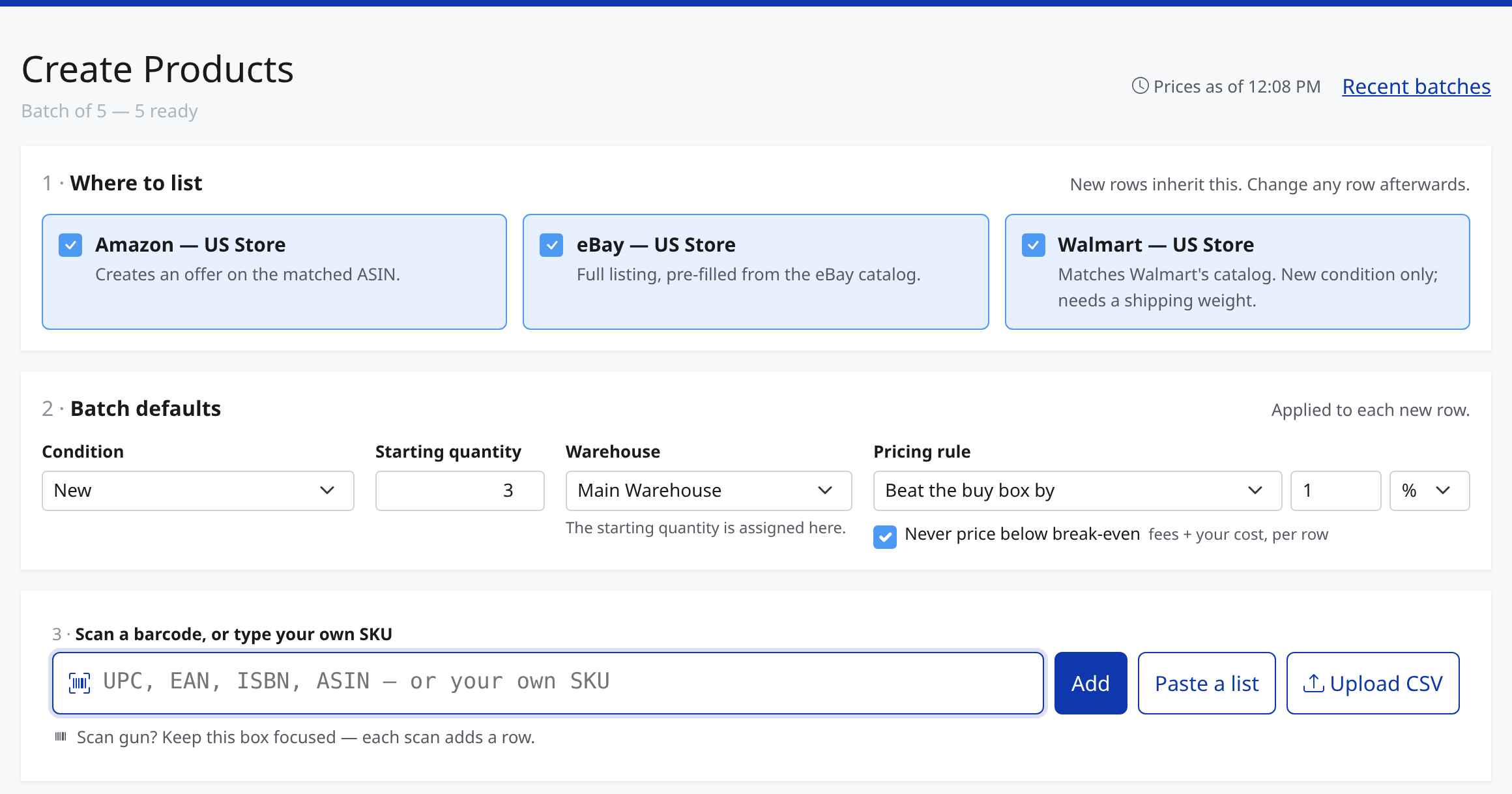
- Already have a list? Paste a list takes one identifier per line, and Upload CSV takes a file of them.
- Let the rows settle. Each one goes out to Amazon, Walmart and eBay and comes back with its catalog match, what the other offers charge, whether you are approved to sell it, and your price.
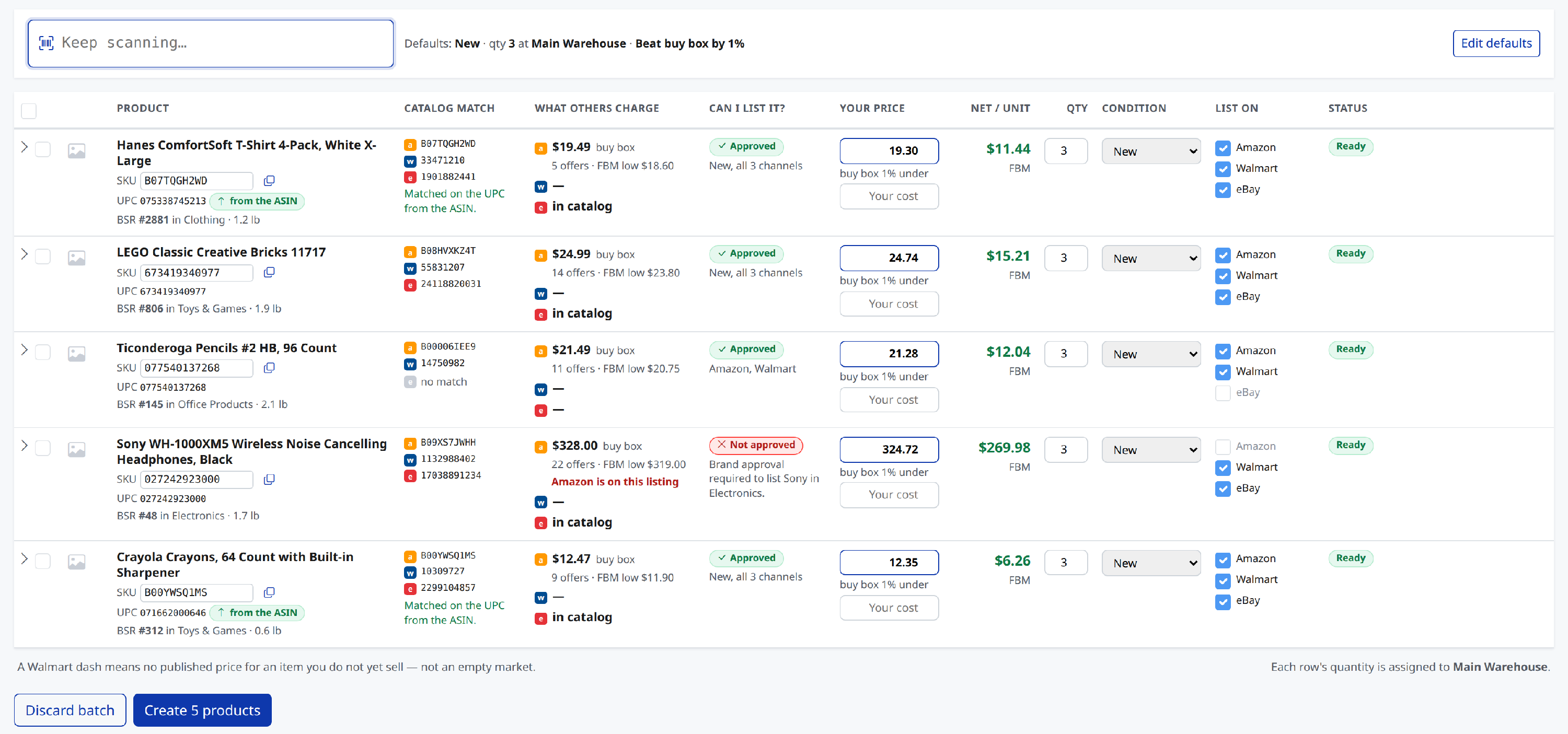
- Deal with anything flagged in the Status column, then click Create products — the button counts the rows it is about to create.
What each row tells you
- Catalog match — the Amazon ASIN, Walmart item and eBay EPID the barcode matched. Each one links out to the live marketplace page.
- What others charge — Amazon's buy box, how many offers are on it and the lowest merchant-fulfilled price, plus Walmart's price.
- Can I list it? — Approved, or the reason Amazon gives for not approving you.
- Your price and Net / unit — the price your rule produced, what that price was based on, and what you keep after fees. Type in your cost and the row shows your margin too.
- List on — the channels this row will be created on.
- Status — Ready, or what the row still needs from you.
Click a row to open it for the whole picture: product details and images, buy box against lowest FBA and lowest merchant-fulfilled with offer counts, the restriction reason in full, a fee-by-fee breakdown of what you keep, and the Walmart and eBay panels. You can add or correct a UPC there as well.
When a row needs you
- SKU in use — you already sell that SKU. Choose Add an offer to that product, take the suggested -2 SKU, or Skip this row. Every clash has to be answered before the batch will create.
- Needs a choice — more than one ASIN carries that barcode. Click the ASINs tag and pick the right item.
- Amazon only — you scanned an ASIN that publishes no UPC, which is most of them. Add a UPC in the row's detail panel and it can reach Walmart and eBay too.
- No match — no catalog carries the barcode. The product is still created; finish it on its product page.
- New product — you typed your own SKU instead of a barcode, so there is no catalog entry to match or price against. Give it a title and finish it on its product page.
Tick the checkboxes on several rows and you can set their condition, quantity or minimum and maximum price together, turn a channel on for all of them, re-fetch prices, or remove them.
After you click Create
The batch freezes, and every row becomes a product plus one offer for each channel you ticked:
- Amazon offers are submitted and are usually live within the hour.
- Walmart match feeds are submitted and usually take one to four hours.
- eBay products are created with their catalog match and wait for you on the full listing form.
The summary that opens counts what went to each channel and shows how every row landed. From there, offers move through Pending Match to Live on Listings > Offers, and anything a marketplace rejects appears under Failed with the marketplace's own reason. The rest of the product — description, images, attributes — lives on the Product Edit page. Learn more
Batches carry on working after you leave the screen. Recent batches lists them all: open a finished batch to see how it landed, resume the one you were scanning into, or give any of them a name.
Create products in bulk from a spreadsheet
- Go to Catalog > Import & export.
- Using the template dropdown, select Product Add > Download Template.
- Open the spreadsheet (.xlsx), and enter all the desired information.
- Save changes, head back to Import & export, and click Upload Template.
You can find additional details outlined here: Use the Product Add spreadsheet
If your file is in your own format rather than ours, use Catalog > Import products instead — it walks you through mapping your columns onto Listing Mirror's fields.
Creating from Scratch
If the listing you are wanting to create does not exist on any marketplace already OR, you just want to create your own new Product, follow these steps!
- Go to the All Listings page and click Create Products
- For the Where to List section, disable any marketplaces that might be showing
- For step #3, enter your SKU. Important to use your SKU here rather than your UPC/EAN/etc.
- Click add
- Fill out the fields Title, Price, Cost (optional), QTY, and Condition
- Rinse and repeat if you want to add multiple Products in a single batch
-
Click Create X Product to create all of the Products in this batch.
Note: if creating only ONE Product, after clicking Create 1 Product, you will be immediately redirected to the Product Edit page for that Product, so you can fill out the rest of the data