
Review Inventory History of a Product
Use Inventory History to you to see inventory changes for a product, its inventory source, and what caused the change. View page
View Inventory History
- To view a product's inventory history, go to Inventory > Stock levels
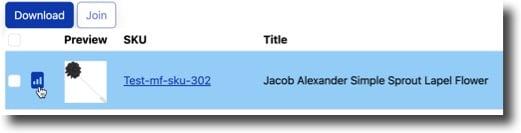
- Click the bar graph icon next to the products SKU and image:
Understanding inventory history
Below is an example of the inventory history page. Notice the quantity change in the FBA US and MF columns as orders are received: 
Columns
- Time: date and time the quantity was updated.
- FBA, MF, etc.: the Inventory Source that had its quantity updated.
- Reason: action that took place to change the quantity. (see below)
- Details: additional details about the inventory update
Reasons
- Activation: a product has been imported into Listing Mirror and added to your inventory.
- API / FTP Sync: your API or FTP has updated inventory.
- Bulk Upload: a user has updated inventory using a Bulk Edit Template.
- Listing Edit: a user has updated inventory quantities in Listing Mirror.
- Order: an order has been placed.
- Qty Sync: Listing Mirror has received an inventory update from the marketplace that fulfilled the order.
- Amazon Seller Central Sync: a quantity change made in Amazon Seller Central was imported. This appears when your Amazon integration is set to In Seller Central. Learn more: Sync Amazon quantity both ways (In Seller Central)
Note: Deleting a product from Listing Mirror will also remove it from Inventory History .