
How to set up your FTP File integration
Connect FTP integration
- Go to Channels > Connected channels
- Click + Connect a new integration > select FTP File
- Enter the required info and use the additional fields to adapt the flow of data to your business needs.
- Click Save Changes
Sections
General
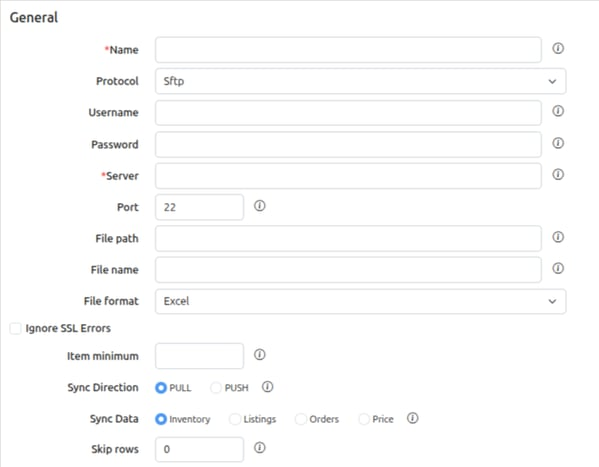
Recommendations
- Name: Assign a unique name to the FTP File integration so it will be easily differentiated from other integrated FTP Files.
- File name: File name is used to specify the file Listing Mirror should read or write.
- For reading, we would generally want it to be a consistent name so we always pick up the latest data.
- For writing, it may be useful to write to a file with a date/time in the file name to create separate files. The name field can either be a literal file name, such as orders.csv, or a name that includes date/time variables, like orders-%Y-%m-%d.csv, which will name the file orders-2024-12-25.csv on Christmas, or orders.2024-12-26.csv the next day. A list of format codes that can be used in this file name can be found at https://docs.python.org/3/library/datetime.html#format-codes
Timing
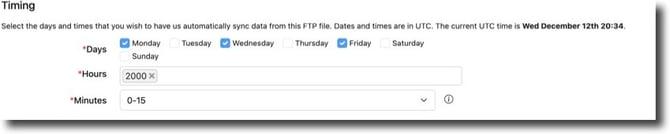
- Use Timing to regularly sync data from this FTP File by selecting the days, hours, and interval of minutes.
- Notice times are in UTC. For example, to sync data between 3:00pm and 3:15pm Eastern, select 2000 for the hours, and 0-15 for the minutes.
Inventory
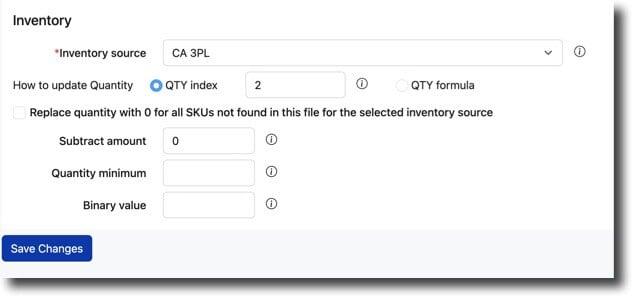
- Select an inventory source from the menu and enter any additional info.
Price
- This will update the Product Price.
- To enable a marketplace to use the Product Price, go to Channels>Connected channels, click on the desired marketplace and enable setting use product price.
Once done, the FTP File integration will be added to the Connected channels page.