
Step 5: Map your Product Categories
Mapping product categories ensures all your listings are correctly categorized and aligned with the marketplace's structure.
Overview
Every marketplace listing needs a category on that marketplace. In Listing Mirror you keep one set of product categories, and you map each one to the matching category on each marketplace you sell on. Map a category once, and every new listing built from it picks up the right marketplace category automatically.
Where to find it
Go to Catalog > Categories.
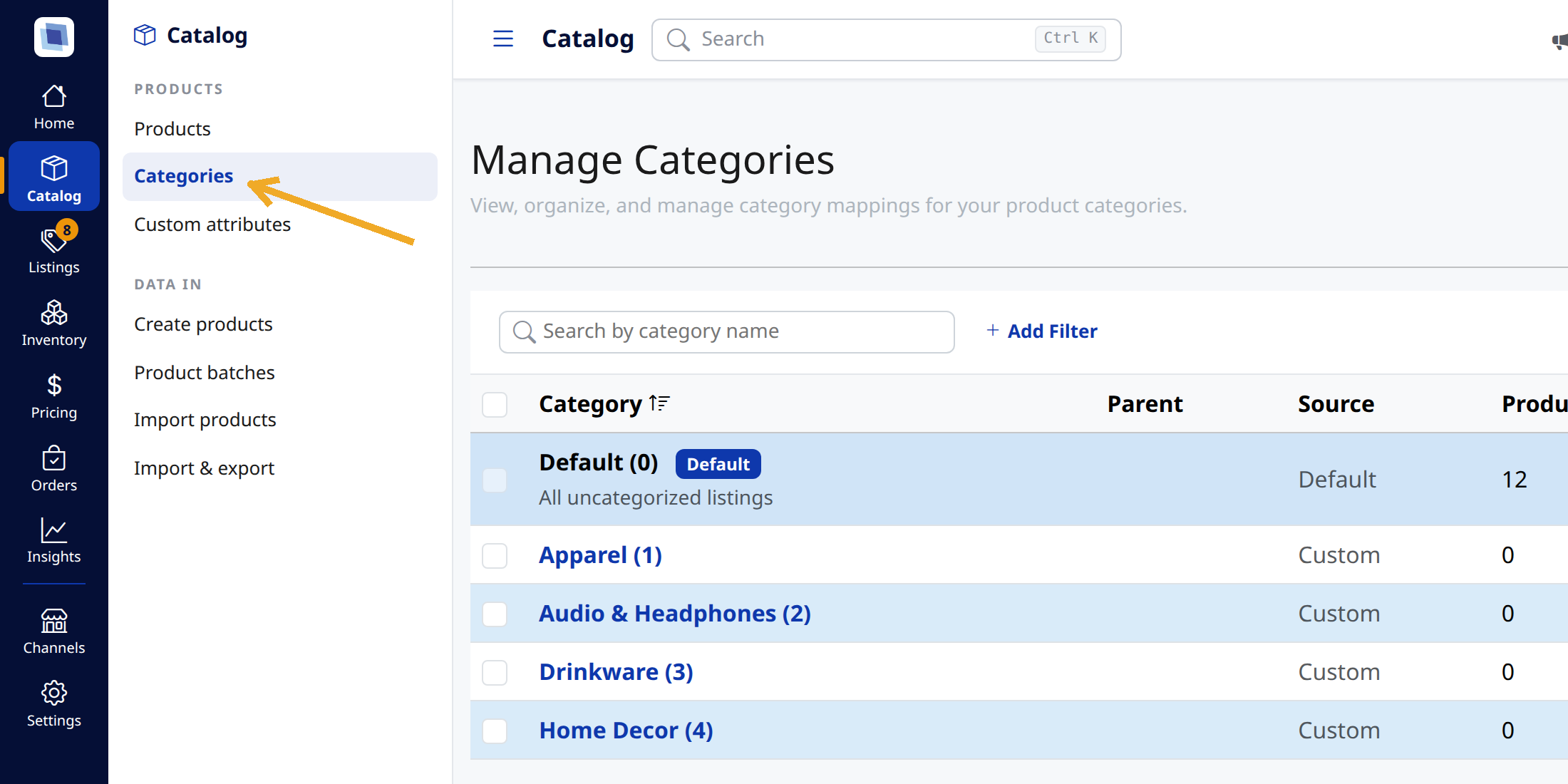
If you have followed an older guide or video that pointed you to a separate Category Mapping page, that is the page you are looking for — mapping now lives on Categories, alongside the categories themselves.
What you are looking at
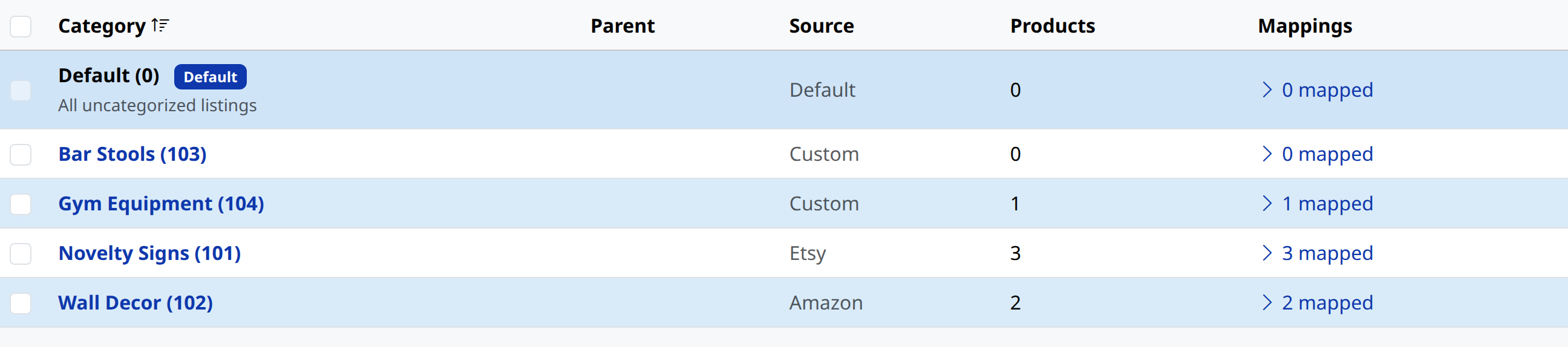
Each row is one of your product categories.
- Source — where the category came from. A marketplace name means it arrived with an import from that marketplace; Custom means you created it yourself.
- Products — how many of your products are in that category.
- Mappings — how many of your marketplaces the category is currently mapped to.
You do not need to sell on Amazon to use this page. Any product category can be mapped to any marketplace, whichever marketplace it was imported from and whether you created it yourself.
Step 1: Open a category's mappings
In the Mappings column, click … mapped to expand the category.
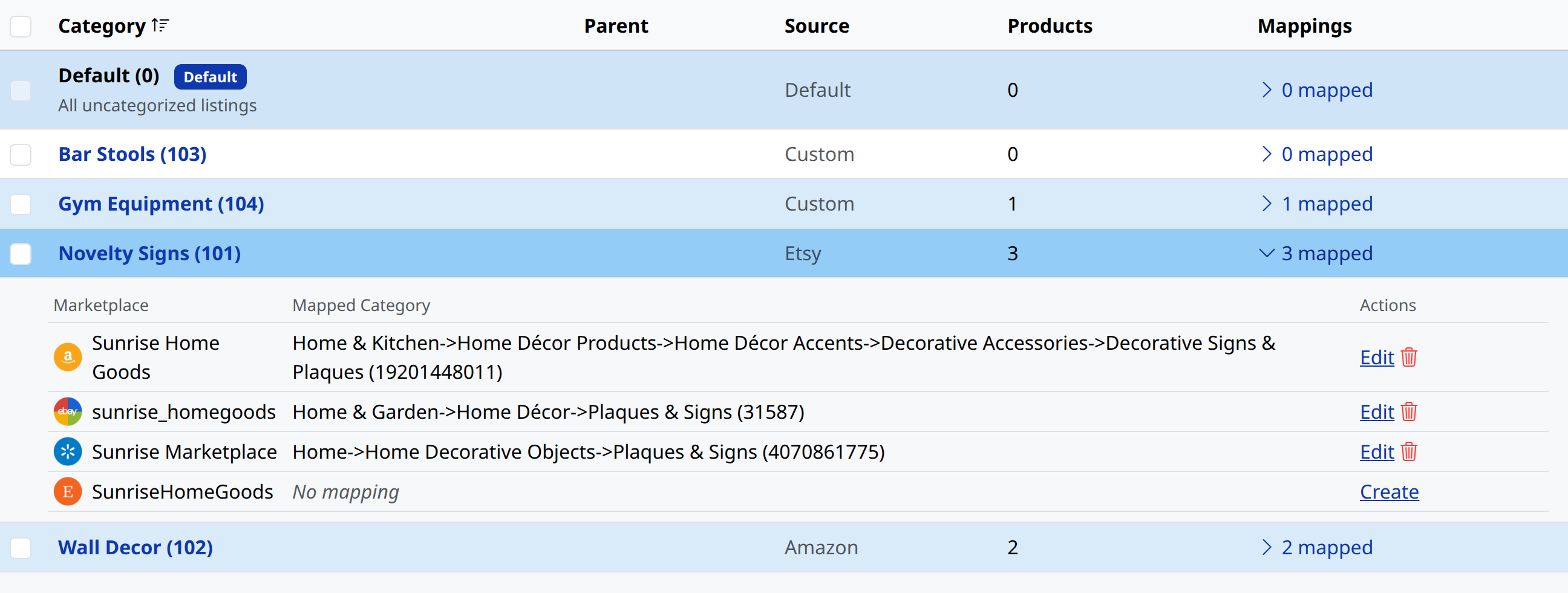
The panel lists every marketplace connected to your account and the category each one is mapped to. The Actions column tells you what you can do next:
- Create — this marketplace has no mapping for this category yet.
- Edit — change a mapping you set.
- Override — replace the mapping Listing Mirror suggested with one of your own.
- The trash icon removes a mapping you set.
Step 2: Choose the marketplace category
Click Create (or Edit, or Override) on the marketplace you want to map.
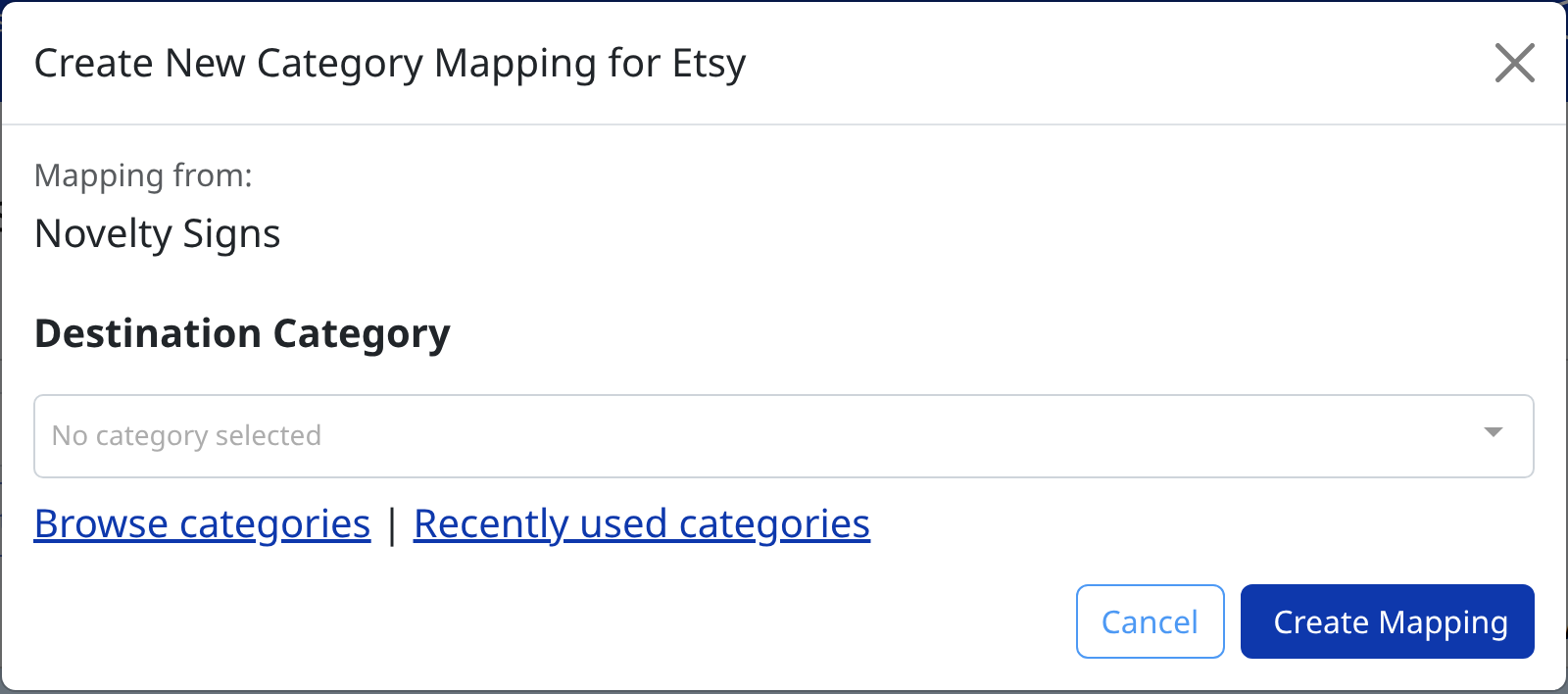
Under Destination Category you have two ways to find the category:
- Start typing in the box to search that marketplace's categories by name.
- Click Browse categories to walk the marketplace's category tree. Recently used categories shows the ones you have picked before.
Step 3: Browse to the category you want
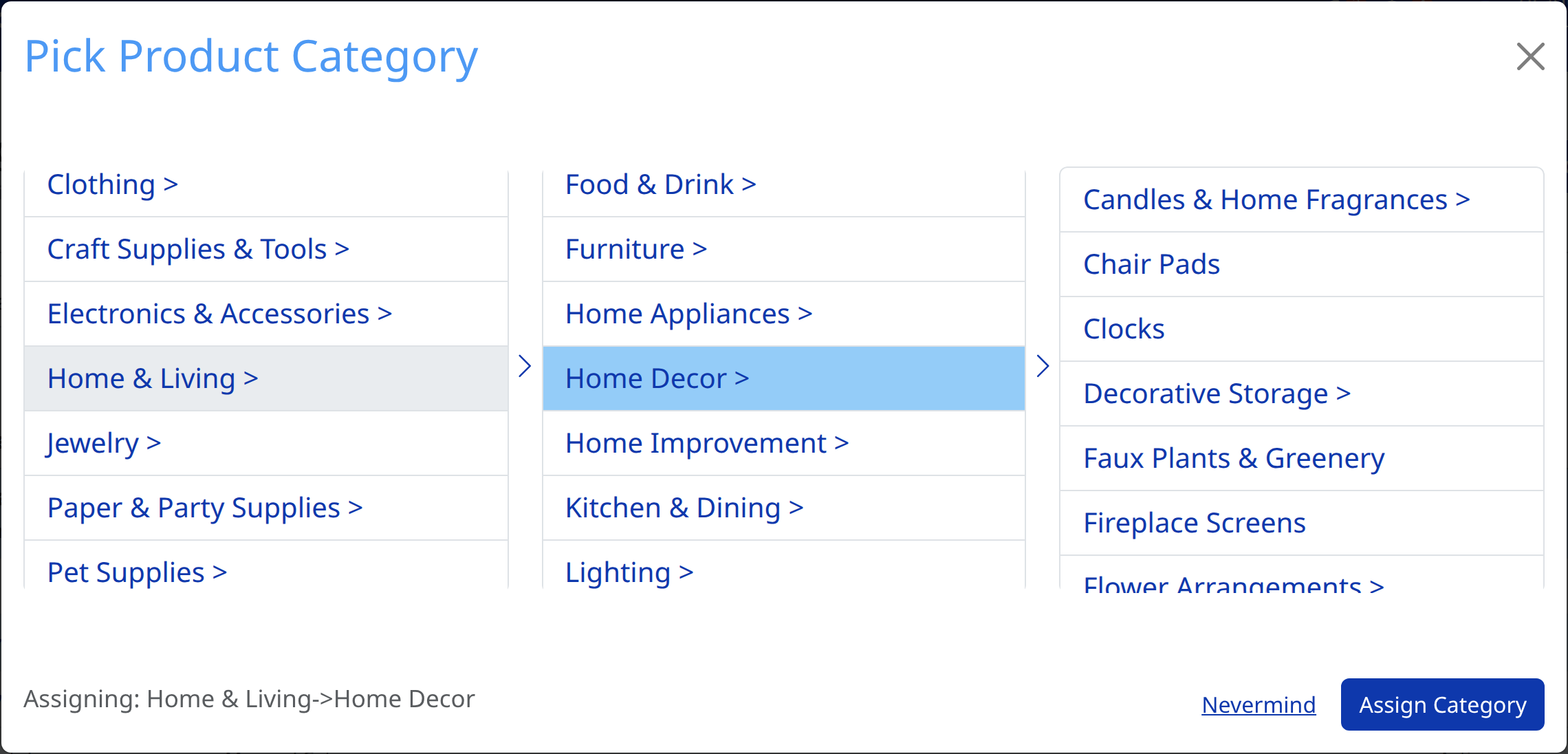
Click through the columns to move down the tree. A category with a > after it has subcategories beneath it.
The status at the bottom left tells you whether the category you have highlighted can be used. Assigning: … means it can. If it says pick a subcategory to assign, that category is only a heading on this marketplace — keep clicking down until you reach one you can use.
When the category you want is showing, click Assign Category.
Step 4: Save the mapping
Click Create Mapping. If you were changing an existing mapping, the button reads Update Mapping, and Delete Mapping removes it.
Step 5: Repeat for your other categories
Work through each product category and each marketplace you sell on. The Mappings count on every row shows you how far you have got, so anything still reading 0 mapped is unfinished.
Good to know
- Mappings apply to new listings. No existing listings will be changed or overwritten.
- The Default row is your safety net. Whenever a product's own category has no mapping for a marketplace, Listing Mirror falls back to the mapping on Default. If you want everything to land somewhere sensible without mapping each category one at a time, map Default first. Products you never assigned a category to also live there.
- You can reshape your categories from this page too. Add New Category creates one, and selecting rows lets you Merge, Add Parent, or Delete. See Set up your product categories from scratch.
Conclusion
Mapping your product categories before you list lays the groundwork for fast, error-free listing creation, and keeps each marketplace's category requirements satisfied without you having to think about them on every product.