
Choose where your marketplace images come from
Choose whether a channel publishes your Product images or its own listing images — and where to make image changes so they actually reach the marketplace.
Images in Listing Mirror can live in two places:
- On your Product — the shared record behind all of that item's marketplace listings.
- On an individual marketplace listing — images that belong only to that channel.
Each integration has a setting that decides which of the two it publishes. Getting this wrong is the most common reason an image change never appears on a marketplace: the sync runs successfully and quickly, but it re-sends images from a source you weren't editing.
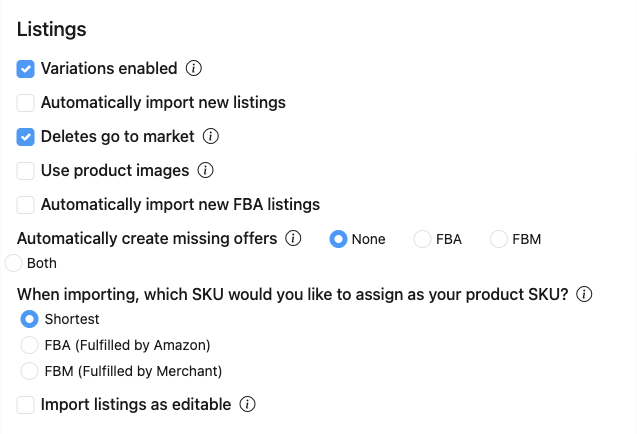
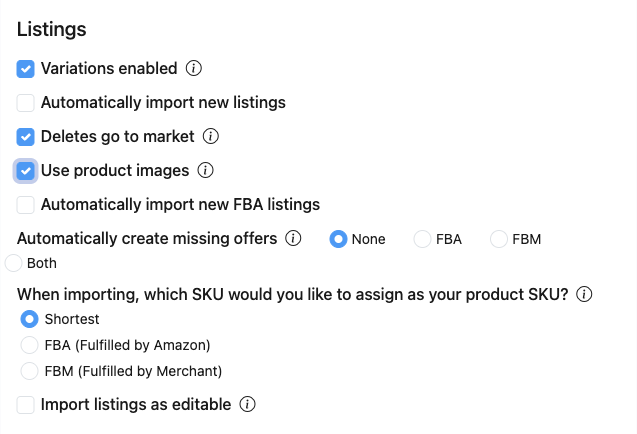
You'll find the setting under Channels > Connected channels > select your integration. On Shopify it's in the Images section; on other channels it's a checkbox in the Listings section.
Marketplace integrations (Amazon, eBay, Etsy, Walmart, TikTok Shop, and others)
Look for Use product images under Listings.
Unchecked — this channel keeps its own images
Edit images on that marketplace listing. Changes to your Product images will not affect this channel. Use this when a channel needs its own photography.
Checked — this channel publishes your Product images
Manage images on the Product, and every channel set this way stays in step automatically. Image changes made directly on the marketplace listing, or in the marketplace itself, will be overwritten the next time Listing Mirror syncs.
Note: "Use product images" is not available for SHEIN integrations.
Shopify
Shopify can be a source of images as well as a destination, so it has three options instead of a checkbox. In the Images section, look for How would you like to manage images?
Sync with Shopify only
Upload images in Shopify or in Listing Mirror and we'll keep both in sync automatically. These images stay on your Shopify listing — they will not update your Product or reach your other channels.

Sync with Shopify and Product
Images stay in sync between Shopify and Listing Mirror, and also flow up to your Product so they reach your other channels. This flows one way to the Product — your Product will not push images back down to Shopify.

Use Product images
Your Shopify listing publishes the images on your Product — manage them there. Image changes made directly in Shopify may be overwritten the next time Listing Mirror syncs.

Note: "Sync with Shopify and Product" and "Use Product images" are opposites and cannot both be on. Choosing one clears the other.
Common setup: Shopify is your image source and your marketplaces follow
If you maintain product photography in Shopify and want it to appear everywhere else:
- Set your Shopify integration to Sync with Shopify and Product.
- Check Use product images on each marketplace integration that should follow along.
From then on, changing an image in Shopify updates your Product, and the Product pushes out to every marketplace set to use Product images.
Common setup: manage images in Listing Mirror
- Upload and arrange images on the Product.
- Check Use product images on every channel, including Shopify (choose Use Product images there).
The Product becomes your single source of truth, and no channel drifts.
Common setup: different images per marketplace
If a channel needs its own photography — a different hero shot, or images sized to that marketplace's rules — leave Use product images unchecked for that channel only, and edit its images on the marketplace listing. Other channels are unaffected.
Troubleshooting: I changed an image and the marketplace didn't update
Work through these in order.
- Check whether "Use product images" is on for that channel. If it is, the marketplace publishes your Product's images and edits made on the marketplace listing are discarded on the next sync. Make the change on the Product instead.
- Open the Product and look at its images. If the new image isn't there, it never reached the source the marketplace reads from — so nothing was going to change, no matter how many times the listing synced.
- If your images come from Shopify, check the Shopify integration's image mode. On Sync with Shopify only, image changes stay on the Shopify listing and never flow up to the Product, so your other channels keep publishing whatever the Product already had. Switch to Sync with Shopify and Product.
- Check for a marketplace rejection. Some channels enforce minimum image dimensions, file types, or a required number of images. If the marketplace refused the image, the error appears on the listing.
A sync that completes quickly with no errors does not mean the image changed — it means Listing Mirror successfully sent whatever its source contained. When in doubt, confirm what's on the Product first.