
How to Manage Merchant Fulfilled Quantities
When first connecting your sales channels to Listing Mirror, your listing data and quantities are automatically imported.
But after that initial synchronization, only your FBA and WFS (Walmart Fulfillment Service) quantities will be imported automatically into Listing Mirror, not merchant fulfilled inventory quantities on Amazon, eBay, or marketplaces.
Amazon: Amazon integrations use the Where do you manage your Amazon quantity? setting instead of the Update quantity checkbox. To keep managing your Amazon merchant fulfilled quantity in Seller Central, choose In Seller Central: Listing Mirror imports your Seller Central changes and keeps your other channels matched. Learn more: Sync Amazon quantity both ways (In Seller Central)
Integration Setting
- Go to Channels > Connected channels
- Select the sales channel
- In the Inventory section, select (or deselect) Update quantity. On Amazon, choose an option under Where do you manage your Amazon quantity? instead.
Select Update quantity
- if you’ll be updating merchant fulfilled quantities in Listing Mirror, and
- you want Listing Mirror to automatically update quantities on the marketplace when an order is received or you have added or subtracted quantities in Listing Mirror.
Do NOT select Update quantity
- if you're planning to manage your inventory in your marketplace seller account or using a different method, and
- you do NOT want Listing Mirror to automatically update quantities on the marketplace when an order is received or quantities change.
⚠️ When a Listing Mirror customer notices a SKU with negative quantity, and quantity is managed in Listing Mirror (Update quantity selected, or Here in Listing Mirror on Amazon), it usually means they are managing inventory in Listing Mirror, but they've accidentally made changes to quantities in their marketplace instead of their Listing Mirror account which led to the discrepancy. 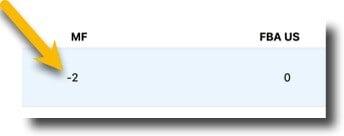
Update quantity manually
- Go to Inventory > Stock levels
- Hover over the row of the product > enter the quantity
- Save
Update quantity in bulk
- Go to Catalog > Import & export
- Select Quantity Update from the template menu
- Click Download template
- When you're ready, return to the same page and click Upload template