
How to use ShipStation with Listing Mirror
There are two ways to use ShipStation and Listing Mirror:
- Connect ShipStation to Listing Mirror. Listing Mirror acts as a bridge between ShipStation and the marketplace by forwarding orders, tracking information, etc.
- This method allows Listing Mirror to break up kits into components, add location info, hide MCF orders while syncing FBM orders.
- ShipStation connects directly to the marketplace. ShipStation and Listing Mirror are connected to the marketplace separately, both pull orders and tracking information from the marketplace.
- This method is simpler and less prone to errors. If the capabilities listed in Method #1 are not important to your workflow, we recommend using Method #2.
⚠️ Only one of the above methods can be used. Attempting to use both will result in seeing doubles of all orders.
If Method #1 works best for your workflow, continue below:
Printing labels: you can print your labels in ShipStation as described below, or buy and print them directly in Listing Mirror using the carriers on your ShipStation account — see Print ShipStation shipping labels in Listing Mirror at the end of this article.
The workflow between Listing Mirror and ShipStation:
- Listing Mirror imports the order from the marketplace.
- ShipStation pulls the order from Listing Mirror.
- In ShipStation, you print the label and ship the item.
- Once the shipping label has been printed, ShipStation sends the tracking number to Listing Mirror.
- Listing Mirror notifies the marketplace the item has been shipped and sends the tracking number.
Splitting Orders:
1. If AutoSplit Orders is enabled for the integration, the order will be split BEFORE ShipStation pulls the order from Listing Mirror, so that should work consistently.
2. For Manually splitting orders, ShipStation will pull in the split order (shrinking the original order and importing the newly split off order). However, be aware that there can be a timing issue. If ShipStation does not pull the order before tracking is uploaded to the order in Listing Mirror.
3. We recommend hitting the "refresh" button in ShipStation to force them to pull in orders from Listing Mirror, after you've manually split the order in Listing Mirror.
Before getting started:
- Disconnect ShipStation from any marketplace integrated with Listing Mirror. Otherwise, orders will be duplicated in ShipStation.
- Turn OFF the option to autofill orders using MCF (Multi-Chanel Fulfillment) in your Listing Mirror marketplace integration settings. Since Amazon handles these orders, excluding them from orders sent to ShipStation will prevent double filling.
Connect ShipStation
- Go to Channels > Connected channels
- Click + Add a new integration > select ShipStation
- Follow the prompts to connect your ShipStation account to Listing Mirror
- In Listing Mirror, select the sales channels you'd like Listing Mirror to sync with your ShipStation account.
- Review and select other additional options including Custom Fields.
- Click Create ShipStation Integration
Update ShipStation settings
- Go to Channels > Connected channels > select ShipStation:
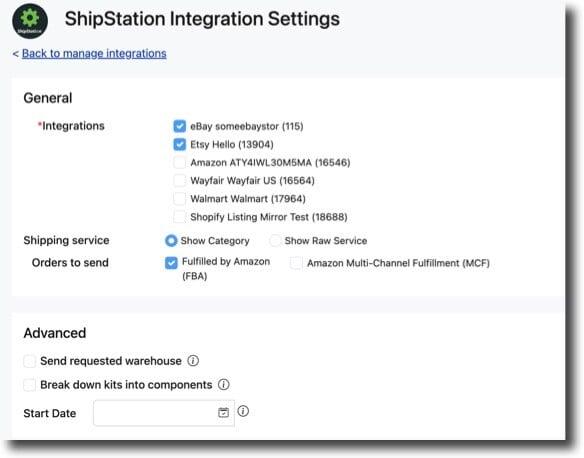

2. Update settings > click Save
Print ShipStation shipping labels in Listing Mirror
Once your ShipStation integration is connected, you can rate-shop the carriers on your ShipStation account, then buy and print a shipping label without leaving Listing Mirror. Listing Mirror records the tracking number on the order and sends it to the marketplace, exactly as it does when the label is printed in ShipStation.
Turn on label printing (one time)
- Go to Channels > Connected channels > select ShipStation
- Check Create shipping labels in Listing Mirror
- Paste your ShipStation API V2 Key in the field that appears. In ShipStation, it's under Settings > Account > API Settings — use the Production Key for the V2 API.
- Click Save
The API key is required: label printing is only available while a key is saved. A saved key is masked rather than displayed — click Update API key to replace it. Unchecking Create shipping labels in Listing Mirror clears the saved key and turns label printing back off.
Buy and print a label
- Go to Orders > All orders and open the order. Orders that can use this show a Shipping section in place of the usual Tracking Info block.
- What's in this shipment? Ship the whole order, or select items and quantities for a partial shipment.
- How do you want to ship? Choose Buy a shipping label. (Enter tracking manually is there for when you ship with your own carrier and only need to record the tracking number.)
- Package & rate. Check the ship-from address. Labels ship from the warehouse the order is being filled from, so the first time you ship from a location, Listing Mirror asks for that warehouse's address and phone. You only enter it once — it becomes the return address on every future label from that location.
- Choose a saved package preset or Custom size, then enter dimensions and weight. Use the lb / in and kg / cm toggle to switch units.
- Click Get Shipping Rates. Rates come back from the carriers connected to your ShipStation account, with the cheapest one marked Best value.
- Select a rate and click Buy Label. The label is bought immediately and charged to your ShipStation account.
- Click View / Print Label (PDF) to print it. The label stays on the order, so you can reprint it later.
- Once the package is on its way, click Mark as Shipped. Listing Mirror records the carrier, service and tracking number on the order and sends the tracking to the marketplace.
Partial shipments
Each shipment gets its own label and tracking number. After you create one, whatever is left appears under Remaining to ship with a Create Shipment button. The order is only marked fulfilled once every item has shipped.
Voiding a label
Click Void label on the shipment. The items go back to being unshipped, so you can buy a different label or enter your own tracking instead. The charge is refunded per the carrier's policy.
Good to know
- Label printing is available on orders that came in through a sales channel you selected on your ShipStation integration.
- If the order already has a tracking number from another source, buying a label is disabled and Listing Mirror shows the existing tracking instead. This is what keeps an order from being shipped twice.
- Work each order in one place. An order stays available for ShipStation to pull until it is marked shipped in Listing Mirror, so if you buy the label here, mark it shipped here too rather than also shipping it in ShipStation.
⚠️ Buying a label is a real purchase. Your ShipStation account is charged as soon as you click Buy Label.
Related info: How to use custom fields in ShipStation