
Limit Import to Products With Tag
Learn how to filter which Shopify products are automatically imported into Listing Mirror using tags.
When Automatically Import New Listings is enabled on your Shopify integration, Listing Mirror will import all active products from your Shopify store. If you'd like to control which products are imported, you can use the Import tag setting to limit automatic imports to only products that have a specific Shopify tag.
This is useful when you have a large Shopify catalog but only want to manage a subset of products through Listing Mirror.
Before You Begin
- Automatically Import New Listings must be enabled on your Shopify integration.
- The tag you want to filter by must already exist on at least one product in your Shopify store.
Set Up the Import Tag Filter
- From the menu bar, click Integrations, followed by Manage Integrations.
- Select Shopify.
- Ensure Automatically Import New Listings is enabled.
- From the Import tag dropdown, select the tag you'd like to use as a filter.
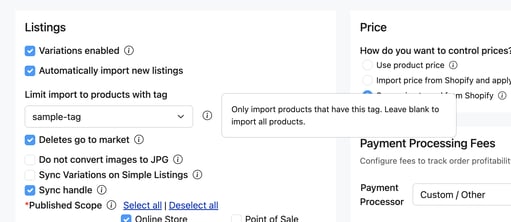
- Click Save Changes.
Once saved, Listing Mirror will only import products from Shopify that have the selected tag. Products without the tag will be skipped during automatic import.
To import all products again, set the Import tag dropdown back to All tags.
How It Works
- Listing Mirror checks your Shopify store for new active products on a recurring schedule.
- When an Import tag is set, only products with a status of Active and the matching tag are eligible for import.
- Products that don't have the tag are skipped entirely and will not appear on your Manage Listings page.
- This filter only applies to automatic imports. If you manually select products during your initial trial setup, the tag filter does not apply.
Note: If you add the tag to a product after it was already skipped, it will be picked up during the next automatic import cycle.