
Every product in Listing Mirror belongs to a **product category**. Your categories form a tree that you control — they're how you organize your catalog, and they're what tells each marketplace where to place a listing (for example, which eBay category to use).
There are three steps to setting up categories:
1. Build your category tree on the Manage Categories page.
2. Assign a category to each product.
3. Map your categories to each marketplace on the *Category Mapping* page.
Step 1: Build your category tree
-
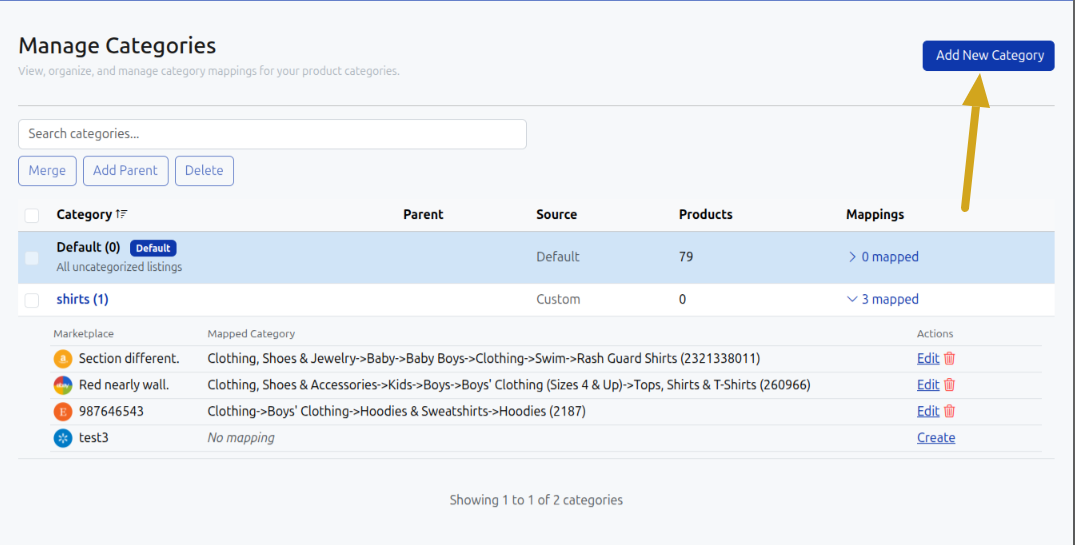
From the menu bar, click Listings > Manage Categories.
-
Click Add New Category.
-
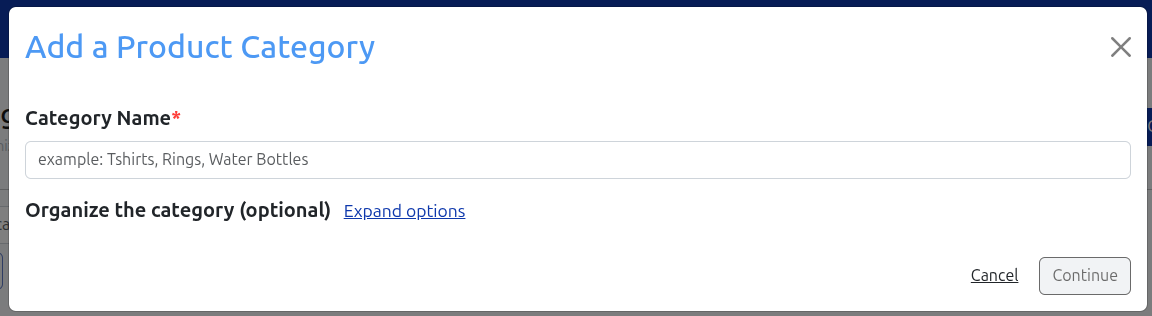
Enter a Category Name (e.g., `Bar Stools`, `Gym Equipment`).
-
(Optional) Click **Expand options** under *Organize the category* to nest the category under a parent.
-
Click Continue to save.
Repeat for every category you want to use. On the Manage Categories page you can also merge, delete, rename, or change the parent of any category at any time.
 Step 2: Assign a category to each product
-
Go to Listings > Manage Listings and click a product's title.
-
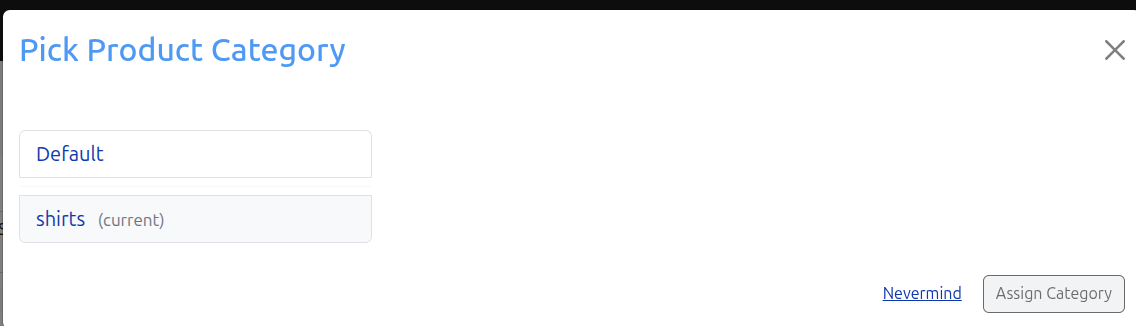
On the Product Edit page, pick a category from the Category field.
-
Click Save.
Any product without a category is automatically placed in the built-in Default category so nothing gets stranded.-png.png?width=515&height=179&name=image%20(1)-png.png)
Step 3: Map your categories to each marketplace
Assigning a Listing Mirror category tells Listing Mirror *what* the product is. To tell each marketplace where it should live on *their* side, you map your categories once on the Category Mapping page. See [Step 5: Map your Product Categories](https://success.listingmirror.com/step) for the full walkthrough.
> Mappings apply to new listings only. Finish your mappings before you create market listings on a new marketplace — existing listings are not retroactively re-categorized.
## Related
- [Add a product to your inventory](https://success.listingmirror.com/create-product-page)
- [Use the Product Add spreadsheet](https://success.listingmirror.com/use-product-add)
- [Step 5: Map your Product Categories](https://success.listingmirror.com/step)