
Before you start
Make sure you have:
-
A connected Walmart marketplace store in Listing Mirror.
-
Your MCS Sales Channel ID from Walmart.
If you don’t know where to find your MCS Sales Channel ID or don't yet have one, Walmart has a guide that walks you through it. If you need to create an ID, simply create your own under the name "Listing Mirror". You will only need one no matter what how many channels you route to Walmart WFS via Listing Mirror.
Step 1: Open your Walmart integration
-
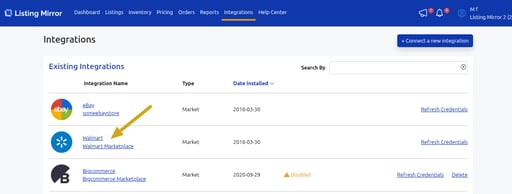
In Listing Mirror, go to Integrations → Manage Integrations.
-
Find your Walmart store and click into it.
Step 2: Add your MCS Sales Channel ID
-
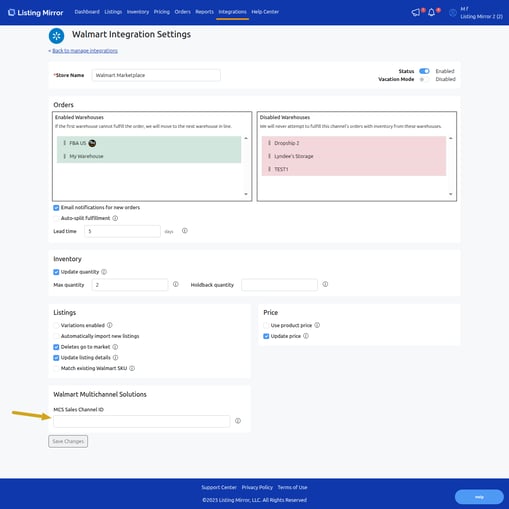
In the Walmart integration settings, locate the field for MCS Sales Channel ID.
-
Paste your ID into the field.
-
Save or continue.
Step 3: Enable WFS for the marketplace you want fulfilled
-
Go back to Integrations → Manage Integrations.
-
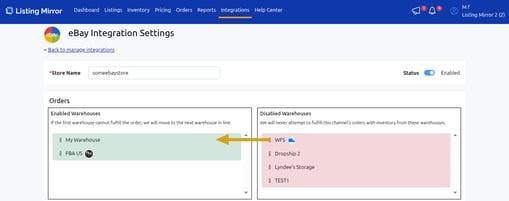
Click the marketplace store whose orders you want Walmart to fulfill (example: Amazon, eBay, Shopify, etc.).
-
In that marketplace’s fulfillment settings:
-
Drag the WMS Warehouse into the Enabled Warehouses box.
-
-
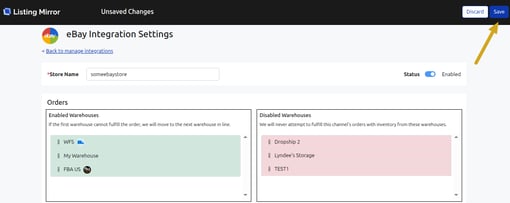
Click Save.
You’re done
That’s it. New orders from the marketplace store you selected will now route to Walmart for fulfillment via WFS.